Review and Respond to Tickets
You must be logged into https://nasda.dog to access you club’s tickets.
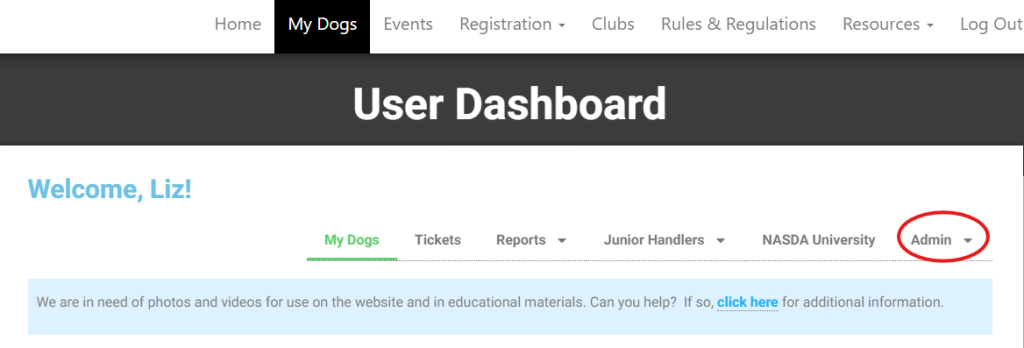
From the My Dogs menu, select “Club Admin” under the “Admin” menu.
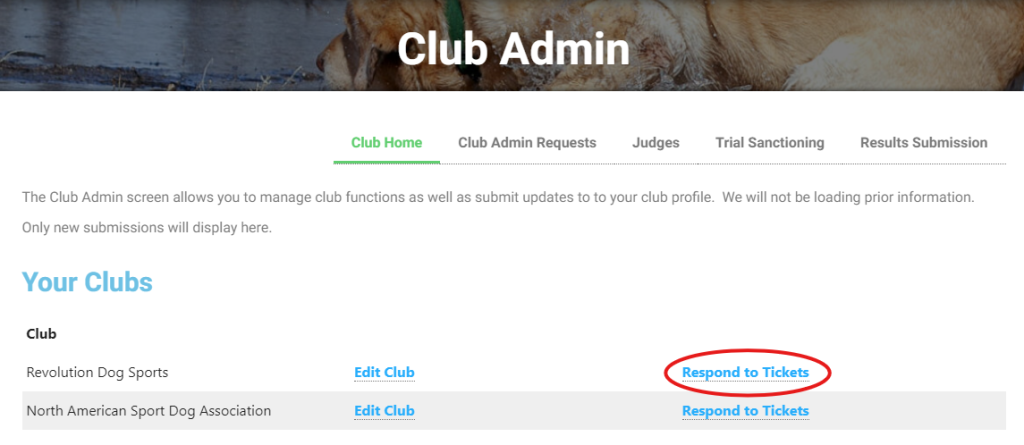
Click “Respond to Tickets” beside the club requiring review.
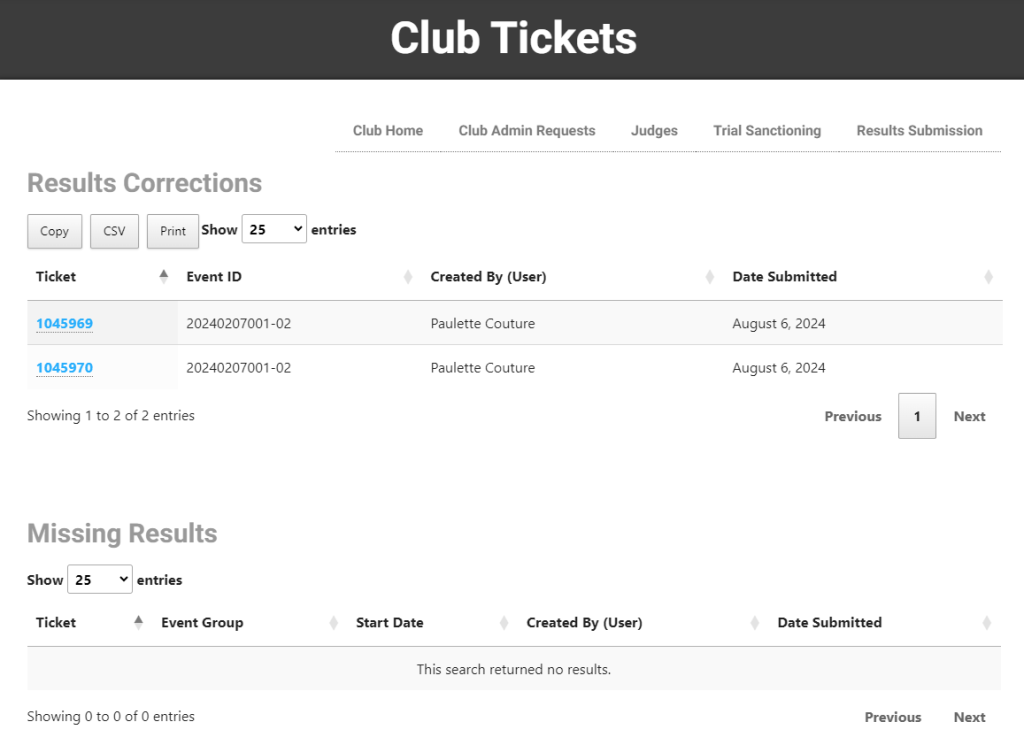
This will take you to all open tickets for this club. Tickets are grouped by type. The exhibitor name and date submitted are also displayed. Click the ticket number to view.
When reviewing tickets, it may be necessary to review score sheets and entry forms. When ready to respond to the ticket, click “Respond to Ticket” found at the bottom of the page.

Responding to Tickets
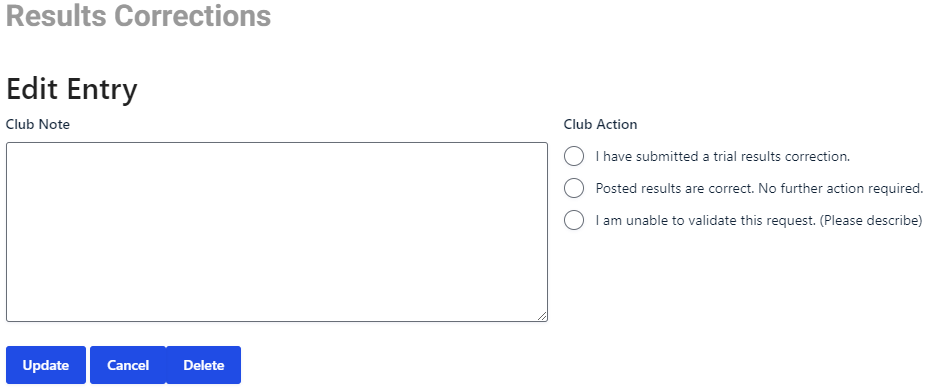
First, include any notes for NASDA admin and / or the exhibitor. This may include how the error occurred or even that there is no error after reviewing score sheets.
Next, select the most appropriate option under “Club Action.”
If selecting “I have submitted a trial results correction” please ensure that the full results correction has been submitted via the Trial Results Submission.
When finished click “Update” to submit your response.
Cancel will return you to ticket list.
Delete is only available to the system administrator.
Upon submitting your response, NASDA admin will review the ticket and respond appropriately.
Respond to Missing Results Ticket
Missing Results Tickets are displayed below the results corrections. To view, click the ticket number.
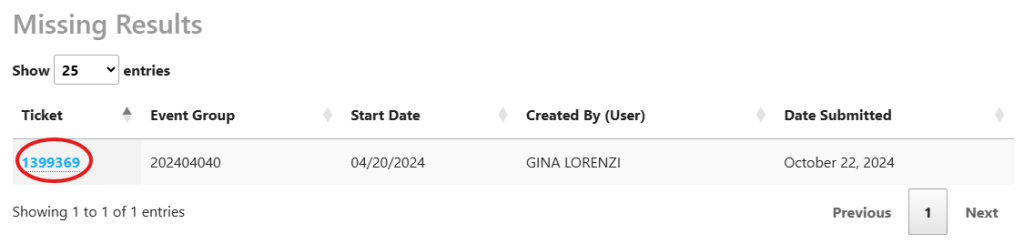
When you have reviewed the ticket, click “Respond to Ticket”

Select a response from the club and provide any notes as needed.
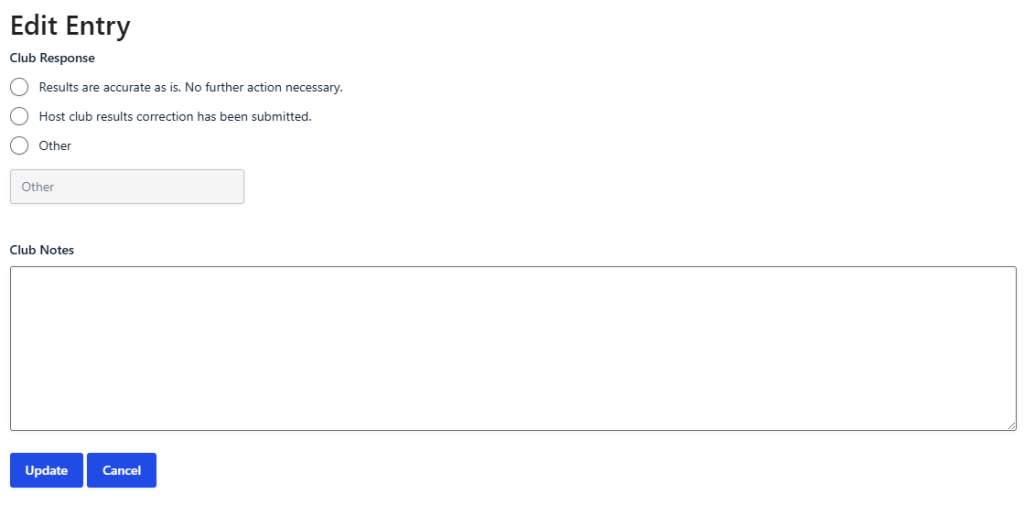
If a results correction is necessary, the file should be submitted through the Results Submission form (Tutorial).